How to Reduce Image File Size Without Losing Quality for Web & SEO 2026
Images are one of the most important parts of the modern internet. Whether you run a blog, manage a website, work in digital marketing, or simply share photos online, images help convey information faster than text. However, high-quality images usually come with one big problem: large file size.
Large images can slow down websites, increase loading time, consume more bandwidth, and negatively affect user experience as well as SEO. This is why many people search for one simple solution:
How to compress image without losing quality?
In this detailed guide, you will learn what image compression really means, how it works, which formats are best, common mistakes to avoid, and how you can compress images safely using a reliable online tool like ToolsWindow Image Compressor.
What Does Image Compression Mean?
Image compression is the process of reducing the file size of an image while trying to keep its visual appearance as close to the original as possible. In simple words, the goal is to make an image “lighter” without making it look blurry, pixelated, or low quality.
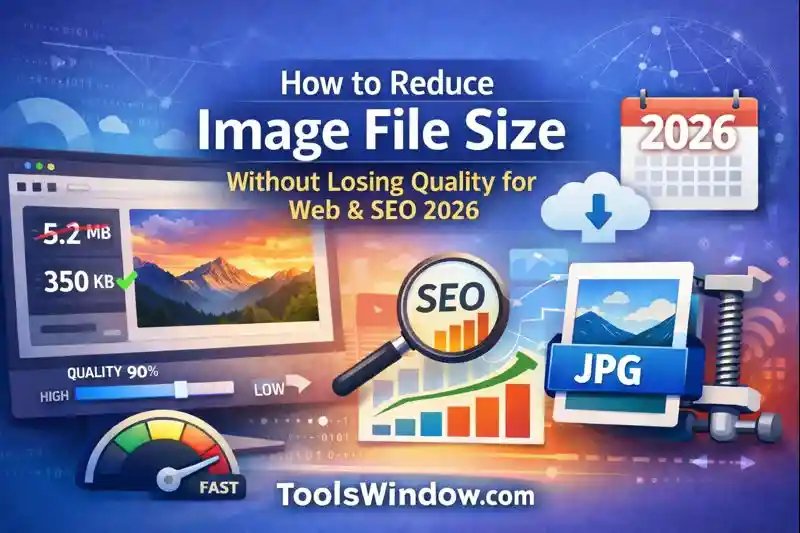
For example, an image that is 3 MB in size can often be compressed to 300–500 KB without any noticeable difference to the human eye. This is especially important for websites and mobile users where speed matters.
Why Image Compression Is So Important Today
In today’s fast-paced digital world, users expect websites to load quickly. If a page takes more than a few seconds to load, visitors often leave without waiting. Heavy images are one of the biggest reasons for slow websites.
Image compression helps in several important ways. It improves website loading speed, reduces server bandwidth usage, saves storage space, and enhances overall user experience. From an SEO point of view, faster websites usually perform better in search engine rankings.
Google itself recommends optimizing images to improve Core Web Vitals, which are now an important ranking factor.
Types of Image Compression Explained Simply
There are two main types of image compression, and understanding them will help you make better decisions.
Lossy Compression
Lossy compression reduces file size by removing some image data. This data loss is usually not noticeable, especially when done correctly. Most JPEG images use lossy compression. The advantage is that file size can be reduced significantly.
However, if you compress too much, image quality can suffer.
Lossless Compression
Lossless compression reduces file size without removing any visual data. The image looks exactly the same as the original. Formats like PNG and some modern compression techniques use lossless compression.
Lossless compression is ideal when image quality is critical, such as logos, graphics, or professional visuals.
If your goal is to compress image without losing quality, lossless or smart optimized compression is the best choice.
Best Image Formats for High-Quality Compression
Choosing the right image format plays a huge role in compression results.
JPEG (or JPG) is best for photographs and complex images with many colors. It supports high compression and is widely used on websites.
PNG is better for images that require transparency, such as logos or icons. It usually has a larger file size but offers excellent quality.
WebP is a modern image format developed by Google. It provides smaller file sizes compared to JPEG and PNG while maintaining excellent quality. For websites, WebP is often the best option today.
Online Image Compression vs Offline Software
Many people wonder whether they should use offline software like Photoshop or online image compression tools.
Offline software requires installation, technical knowledge, and manual settings. It is powerful but time-consuming and not beginner-friendly.
Online image compression tools, on the other hand, are simple, fast, and accessible from any device. You don’t need design skills or software installation. This is why online tools are now the preferred choice for most users.
The Safest Way to Compress Images Without Losing Quality
If you want a simple and reliable solution, using a trusted online tool is the easiest approach. One such tool is ToolsWindow Image Compressor.
This tool is designed for bloggers, website owners, students, and professionals who want quick image optimization without technical complexity.
You can access it here:
👉 https://toolswindow.com/image-compressor/
Why ToolsWindow Image Compressor Is a Smart Choice
ToolsWindow Image Compressor focuses on quality-preserving compression. Instead of blindly reducing image data, it intelligently optimizes images so they look visually identical to the original.
Some key benefits include:
- No software installation required
- Supports JPG, PNG, and WebP formats
- Fast processing with minimal quality loss
- Clean and beginner-friendly interface
- Works smoothly on mobile and desktop
Because the tool is fully online, you can compress images anytime, anywhere.
How to Compress an Image Using ToolsWindow (Step by Step)
First, open the ToolsWindow Image Compressor page in your browser. Once the page loads, upload the image you want to compress. The tool automatically analyzes the image and applies optimal compression settings.
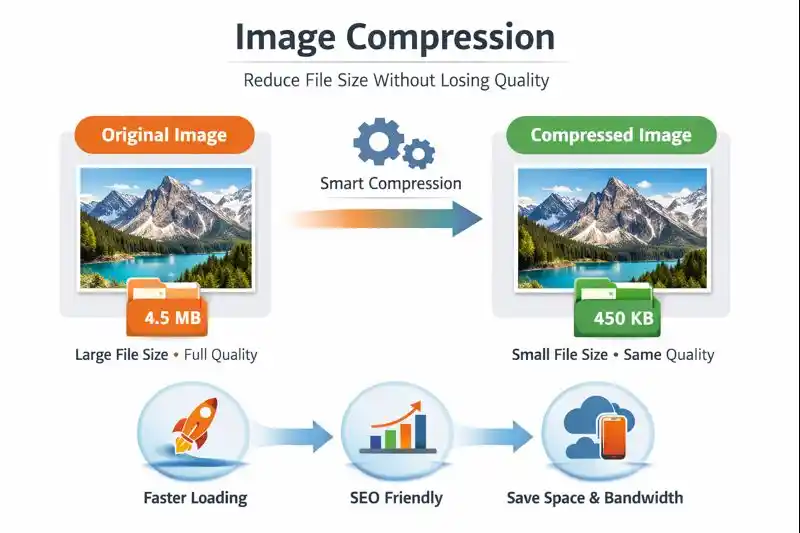
Within seconds, you can download the compressed image. The result is a much smaller file size with almost no visible difference in quality.
This process requires no technical knowledge and takes less than a minute.
Real-World Example of Image Compression
Let’s take a practical example. Suppose you have a blog image that is 2.5 MB in size. After compressing it using ToolsWindow Image Compressor, the file size may drop to around 300–400 KB.
To a normal viewer, both images look exactly the same. But for your website, this size reduction makes a huge difference in loading speed and performance.
Image Compression Tips for Bloggers and Website Owners
Before uploading images to your website, always compress them. Uploading raw, high-resolution images directly to WordPress or any CMS can slow down your site.
Also, use appropriate image dimensions. Uploading a 4000-pixel wide image for a blog post that displays at 1200 pixels is unnecessary and wastes bandwidth.
Adding proper alt text to images helps with SEO and accessibility, making your content more search-engine friendly.
Common Image Compression Mistakes to Avoid
One common mistake is over-compressing images. This leads to blurry visuals and poor user experience. Another mistake is using random or unreliable tools that damage image quality.
Using the wrong image format is also a frequent issue. For example, saving transparent images as JPEG removes transparency and reduces quality.
Always choose the right format and a reliable compression tool.
Is Image Compression Good for SEO?
Yes, absolutely. Image compression improves page speed, which is a direct ranking factor. Faster pages lead to better user engagement, lower bounce rates, and improved SEO performance.
Optimized images also help your website perform better on mobile devices, which is critical since most users browse on mobile today.
Frequently Asked Questions
Many people ask whether image compression always reduces quality. The answer is no. With smart compression tools, quality loss is either minimal or completely unnoticeable.
Another common question is whether online tools are safe. Trusted tools like ToolsWindow Image Compressor process images securely and do not permanently store them.
Final Thoughts
Image compression is no longer optional. If you care about website speed, SEO, and user experience, you must optimize your images properly.
The good news is that you don’t need advanced skills or expensive software. With tools like ToolsWindow Image Compressor, you can compress images quickly, safely, and without losing quality.
If you want a fast, free, and beginner-friendly solution, try it here:
👉 https://toolswindow.com/image-compressor/
Read Also:
- Difference Between JPG and PNG Full Guide 2026
- Top 10 Free Tools for Indian Startups That Actually Save You Lakhs in 2026
- Difference Between JPG and JPEG Format- Full Guide 2026
- 5 Tips to Create a Strong Password (Stay Safe Online in 2026)
- Top 10 Free Tools for Indian Startups That Actually Save You Lakhs in 2026
- JPG vs PDF | Understanding the Difference Betveen JPG and PDF