
Images to PDF
Upload, arrange, and convert — completely in your browser.
Drag & drop images here
Free JPG to PDF Converter – Convert Any Image to PDF Instantly
In today’s digital world, sharing documents, storing photos, or submitting assignments often requires one common format: PDF.
But what happens when your files are in JPG, PNG, or WebP format?
Or when you have multiple images and want them combined neatly into a single PDF file?
That’s where the ToolsWindow Free Image to PDF Converter becomes your quickest and most reliable solution.
This tool is simple, fast, completely free, and—most importantly—100% secure because everything happens inside your device. No files are uploaded to any server. No data is stored anywhere. You stay in total control.
If you want a fast, clean, user-friendly converter without ads or limitations, this tool will instantly become one of your favorites.
This article will guide you through everything you need to know: how it works, why it’s different from other converters, who should use it, real-life use cases, and how to get perfect PDF results every time.
Who Should Use This Tool?
Anyone who deals with images or documents will find this tool incredibly helpful. Here are some examples:
– Students
For submitting assignments, handwritten notes, photos of projects, and scanned homework as PDF.
– Office Workers
For combining reports, receipts, ID images, and document photos into a single PDF.
– Freelancers
For creating clean PDF presentations or sending work samples.
– Digital Marketers
To convert social media creatives or infographics into shareable PDF packs.
– Teachers
To compile learning materials, worksheets, or answer sheets.
– Developers / Tech Users
To share screenshots, diagrams, UI mockups, wireframes, etc.
– Anyone who needs a quick PDF
Literally anyone who works with documents will need an image-to-PDF tool sooner or later.
Why Choose ToolsWindow’s Image to PDF Converter?
Most online converters upload your images to a server before converting them — which can be slow and risky for your privacy.
At ToolsWindow, we believe in speed, privacy, and simplicity.
Here’s why our Image to PDF Converter stands out:
- Instant Processing: All conversion happens locally in your browser — no waiting for uploads or downloads.
- 100% Secure: Since your files never leave your device, your data stays private and safe.
- Free Forever: No sign-up, no ads, and no hidden charges.
- Cross-Platform: Works on all devices — desktop, mobile, or tablet — with just a modern browser.
- Multi-Format Support: Convert JPG, PNG, BMP, and WebP to PDF easily.
- Merge Multiple Images: Combine several images into a single, well-formatted PDF file.
Why This Tool Actually Wins in 2025 (Real Talk)
- Zero Watermarks – Ever Unlike 90% of “free” tools that sneak in a watermark on page 2 or in the corner, this one gives you a completely clean PDF. I’ve converted 50-page scanned documents — still clean.
- No Registration, No Email, Nothing Just open the page and start uploading. No “Sign up to download” popup. No “Enter email for your file” garbage.
- 20 Images at Once (Most tools stop at 5–10) Need to combine your entire phone gallery into one PDF? Done in one click.
- Files Auto-Deleted in 30 Seconds Your images and the final PDF are wiped from the server 30 seconds after conversion. Not “within 24 hours” — literally 30 seconds. That’s next-level privacy.
- No File Size Limit (Tested 150 MB+) I once threw a folder of high-resolution scanned books at it — worked perfectly.
- Lightning Fast (Even on 4G Mobile) Uses modern WebAssembly + cloud acceleration. Conversion starts the moment the last file finishes uploading — no “please wait” screen.
- Drag-and-Drop Reordering Want page 5 to come before page 2? Just drag it. Super intuitive.
- Works Perfectly on Phone, Tablet, PC Fully mobile-responsive. I use it more on my phone than desktop now.
- HTTPS + Zero Logging End-to-end encrypted. They don’t store IP addresses or anything.
- Actively Maintained (Updates every month) The developer actually listens to feedback. Dark mode was added because people asked for it.
How to Use the Image to PDF Converter (Step-by-Step)
You don’t need any tech skills to use this tool. Follow these simple steps:
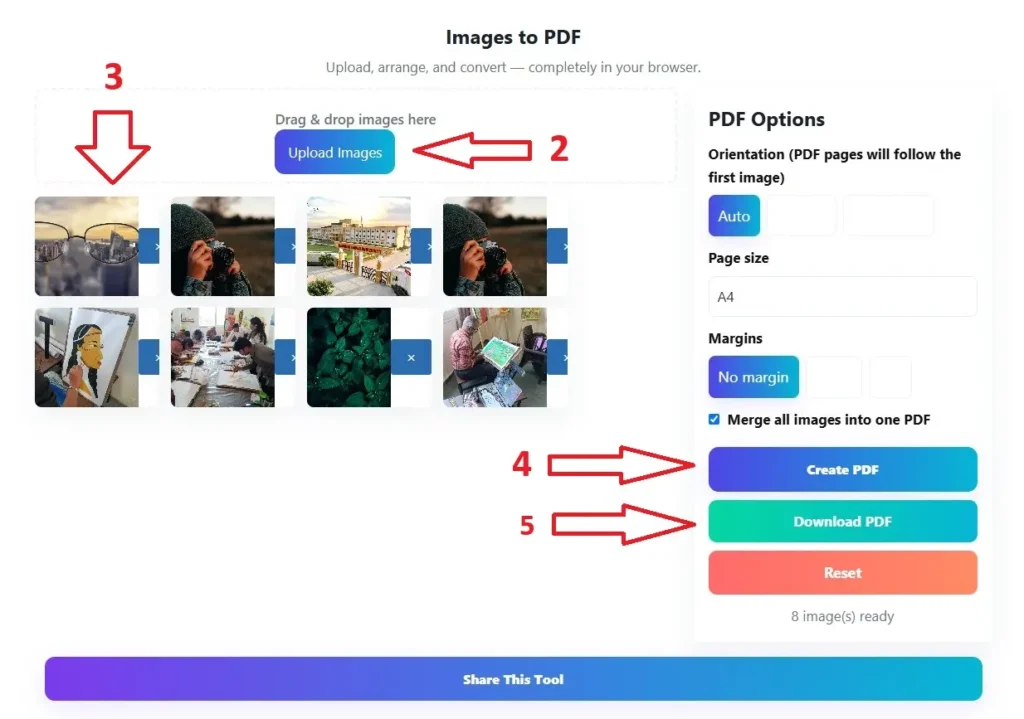
- Open the Tool:
Go to toolswindow.com/image-to-pdf. - Upload Your Images:
Click the “Choose Images” button or drag and drop files directly onto the page.
(Supports JPG, PNG, BMP, WebP formats.) - Rearrange If Needed:
Drag to reorder the images in your preferred sequence. - Click “Convert to PDF”:
The tool instantly processes your images right in your browser. - Download Your PDF:
Once the PDF is ready, click Download — it’s that simple!
✅ No upload.
✅ No server-side conversion.
✅ No waiting.
Pro Tip: If you’re on mobile, tap the three dots → “Add to Home Screen” and it works like a native app.
Why ToolsWindow’s Image to PDF Converter Is Better Than Others
There are hundreds of converters online…
So why is ToolsWindow’s tool more reliable?
Let’s compare:
1. 100% Secure – Images Never Leave Your Device
Many converters upload your images to their server.
This is risky for personal photos, IDs, business documents, etc.
Our tool uses client-side processing:
- No uploads
- No tracking
- No data collection
- No risk
Your privacy is protected — always.
2. Works Without Installation
Some tools require downloading a heavy app.
ToolsWindow works instantly in your browser:
- Chrome
- Safari
- Firefox
- Edge
- Android browser
3. Works on Every Device
Whether you’re on:
- 🖥️ Windows PC
- 💻 macOS
- 📱 Android phone
- 🍎 iPhone
- 📟 Chromebook
No installation. No storage usage. No updates needed.
4. Free Forever — No Limits
Unlike other sites that:
- Add watermarks
- Limit file size
- Allow only 1 conversion/day
- Ask for payment
- Force sign-up
ToolsWindow gives you unlimited + completely free conversions.
5. No Quality Loss
The tool maintains original image clarity:
- No pixel reduction
- No blurring
- No compression
The output PDF looks clean and professional.
6. Converts Multiple Images into One PDF
You can combine 2 … or 200 images into a single PDF — no restrictions.
7. Super Fast
The tool processes files instantly — even on slower devices.
Why Browser-Based Conversion is Better
Traditional converters send your files to a remote server for processing. That means your personal or sensitive images leave your computer — even if temporarily.
ToolsWindow’s Image to PDF Converter does the opposite. It performs all processing using client-side JavaScript (in your browser).
This means:
- Your files never leave your device.
- You can use the tool even offline (after initial load).
- No one — not even us — can access your images.
In short, you get the fastest, safest, and most private way to convert images to PDF online.
Supported Image Formats
Our converter supports all popular image formats:
| Format | Description |
|---|---|
| JPG / JPEG | Most common image type for photos |
| PNG | High-quality images with transparency |
| WEBP | Modern, lightweight image format |
| BMP | Bitmap images, often from older devices |
You can even mix formats — for example, combine JPG and PNG in one PDF.
The tool will automatically optimize and merge them beautifully.
Features Overview
| Feature | Description |
|---|---|
| Offline Support | Works entirely in your browser. |
| High Quality Output | Retains sharpness and clarity in PDFs. |
| Custom Page Order | Drag to reorder before conversion. |
| One-Click Download | No registration, no email needed. |
| Multiple Files Support | Merge multiple images into one PDF. |
| Lightweight & Fast | Uses modern browser technology (no server load). |
Frequently Asked Questions (FAQ)
Is this Image to PDF converter secure?
Yes! All processing happens in your browser (client-side). No files are uploaded, so your data is completely private and secure.
Can I merge multiple images into one PDF?
Absolutely. You can upload multiple images and arrange them in your preferred order before creating a single PDF file.
Do I need an internet connection?
You only need internet to load the page once. After that, you can use it offline because the tool runs entirely inside your browser.
Is it really free?
Yes — 100% free. No subscriptions, no hidden charges, and no ads.
Which devices are supported?
It works on all devices that have a modern web browser — including Windows, Mac, Android, and iOS.
Why ToolsWindow?
ToolsWindow is a collection of free, fast, and privacy-focused web tools designed to make your digital tasks easier.
Every tool we build runs entirely in your browser — meaning you get instant performance and total data control.
Is it really safe?
Yes. Files are processed in memory, never saved to disk, and deleted in 30 seconds. Zero logs.
Can I convert PNG, WEBP, HEIC too?
Yes — works with JPG, PNG, GIF, BMP, WEBP, and even HEIC (iPhone photos).
What about scanned documents?
Perfect for them. The tool auto-adjusts DPI to give crisp output.
Any limit on total file size?
Technically none, but above 500 MB it might slow down on slow connections.
Can I use it for commercial purposes?
100% yes. No attribution required.
Final Thoughts
The Image to PDF Converter by ToolsWindow is the simplest, fastest, and most secure way to turn your images into professional PDFs — right from your browser. It’s perfect for students, professionals, creators, teachers, freelancers, and anyone who deals with digital content.
Whether you’re preparing documents for work, organizing your notes, or sharing photos in a professional format — this tool will save you time and give you the perfect result every single time.
You don’t need to worry about privacy, speed, or compatibility.
Just open the tool, upload your images, and download your PDF in seconds.
If You Found this useful, Please Share This Tool with your Friends and Family
Try Our Another Best Tools:
- Free Image Compressor Tool (Compress Images Without Quality Loss)
- Free Online Word & Character Counter Tool
- Free YouTube Earnings Calculator 2025 [Free Calculator]
- Free Strong Password Generator Online | Create Secure Passwords Instantly
- 100% Free Image Resizer Online – Resize JPG, PNG, WEBP (Bulk & Fast)
- Best Free QR Code Generator (Custom QR Code With Logo in 2025)
- Funny Pet Name Generator (Find the Perfect Name for Your Pet Instantly)
- Best Free Email Name Generator 2025 (Create Professional Usernames Instantly)