
📐 Image Resizer — Resize Images Online (Bulk & Fast)
Resize, convert and download images instantly. 100% client-side — your files never leave your device.
or drag & drop images here
Tip: For best results use high-resolution images. Use Image Compressor before resize if file size is very large.
Free Image Resizer Online: The Fastest Way to Resize Images in 2025 (No Upload Required)
Let’s be real — almost every single day we need to resize an image. Whether it’s cropping a photo into a perfect square for Instagram, shrinking a huge screenshot for a blog post, making a lightweight product image for an online store, or just fitting a picture into WhatsApp’s profile size limit — resizing is something we all do way more often than we admit.
The problem? Most online tools force you to upload your images to their servers. That’s fine for random memes, but what if it’s a family photo, a client’s product shoot, or something with personal info? I don’t know about you, but I’m not comfortable sending private pictures to some random server in who-knows-where.
That’s exactly why I fell in love with ToolsWindow’s Free Image Resizer the moment I tried it.
What Is an Online Image Resizer?
An online image resizer is a web-based tool that adjusts the dimensions of an image according to your need. It allows you to reduce or increase image width and height, change aspect ratios, and optimize photos for different devices or platforms.
Unlike traditional software like Photoshop, GIMP, or Paint.NET, an online tool works directly in your browser. You simply upload your picture, choose your size, and download the updated version—no installation, no subscription, no learning curve.
Your Free Image Resizer Online tool takes this concept further with fast processing, a clean design, and support for all popular formats like JPG, PNG, WEBP, and more.
Why This Tool Stands Out in 2025
There are hundreds of image resizers online, but very few work entirely in your browser. ToolsWindow’s version does zero uploading. Everything happens on your device — your phone, tablet, or laptop. The moment you drag and drop or select images, the magic starts instantly. No waiting, no “processing on server”, no privacy worries.
And trust me, in 2025 when data leaks and privacy scandals are still making headlines every other week, a truly client-side tool feels like a breath of fresh air.
Bulk Resizing? Yes, Please!
Most free tools limit you to one image at a time. Annoying, right?
ToolsWindow lets you process up to 30 images at once (you can even bump it to 60 if you want). Perfect when you’ve just finished a photoshoot, have 25 product images for your Shopify store, or need to prep a bunch of pictures for social media posts in one go.
Just drag the folder, set your desired dimensions or pick a preset, hit “Resize Images”, and boom — all done in seconds.
Presets That Actually Save Time
They didn’t just throw in random sizes. The presets are spot-on for 2025 standards:
- Instagram Post – 1080×1080 (perfect square)
- Instagram Story/Reels – 1080×1920
- YouTube Thumbnail – 1280×720
- Facebook Cover – 820×312
- Twitter/X Post – 1024×512
Pick one, and you’re done. No guessing, no Googling “what’s the best size for Instagram in 2025?” — it’s already there.
Full Control When You Need It
Want custom dimensions? Easy. Just type in your width and height. Check the “Keep aspect ratio” box (it’s on by default) and you’ll never end up with stretched or squished images.
You can also choose your output format:
- JPG (great for photos)
- PNG (if you need transparency)
- WebP (smaller file size, modern websites love it)
There’s even a quality slider for JPG/WebP — drop it a bit if you want super-small files, or keep it high for maximum clarity.
Why Not Use Photoshop or Heavy Software?
Photoshop is powerful—but:
- It’s expensive
- It has a steep learning curve
- It takes time to install
- It requires a powerful system
Your Free Image Resizer Online tool solves all these issues by offering a simple, instant alternative that works directly in the browser.
Download Options That Make Sense
Once resizing is done, you get clean thumbnails with file size and dimensions shown right there. Click any image to download individually, or hit “Download All as ZIP” — perfect when you’ve processed 20+ images.
No forced watermarks, no sign-up, no “premium” nonsense to remove a logo. Completely free.
Mobile-Friendly? Absolutely.
I tested it on both Android and iPhone — works flawlessly. The interface scales perfectly, buttons are big enough to tap, and processing is surprisingly fast even on mid-range phones. No app install needed — just open the link and go.
Who Is This Tool Actually For?
Honestly? Everyone.
- Content creators & bloggers — lightweight images = faster websites
- Social media managers — consistent sizes across platforms
- E-commerce store owners — bulk resize product photos
- Freelance designers — quick fixes without opening Photoshop
- Regular people — making profile pics, WhatsApp DPs, or resizing vacation photos
I’ve used it for all of the above, and it never let me down.
Speed & Performance (Because Nobody Has Time to Wait)
Since everything runs in your browser using pure JavaScript and Canvas, there’s no server delay. The progress bar moves in real-time, and even 20 high-resolution images get processed in under 10–15 seconds on a decent laptop.
And yes — it works perfectly offline too if you bookmark the page (thanks PWA vibes).
Privacy = Non-Negotiable
Let me say this again because it can’t be stressed enough: Your images never leave your device.
No cloud storage, no temporary server files, no “we delete after 1 hour” promises. As soon as you close the tab or clear your browser, everything is gone. That level of privacy is rare these days.
How to Use It (Step-by-Step)
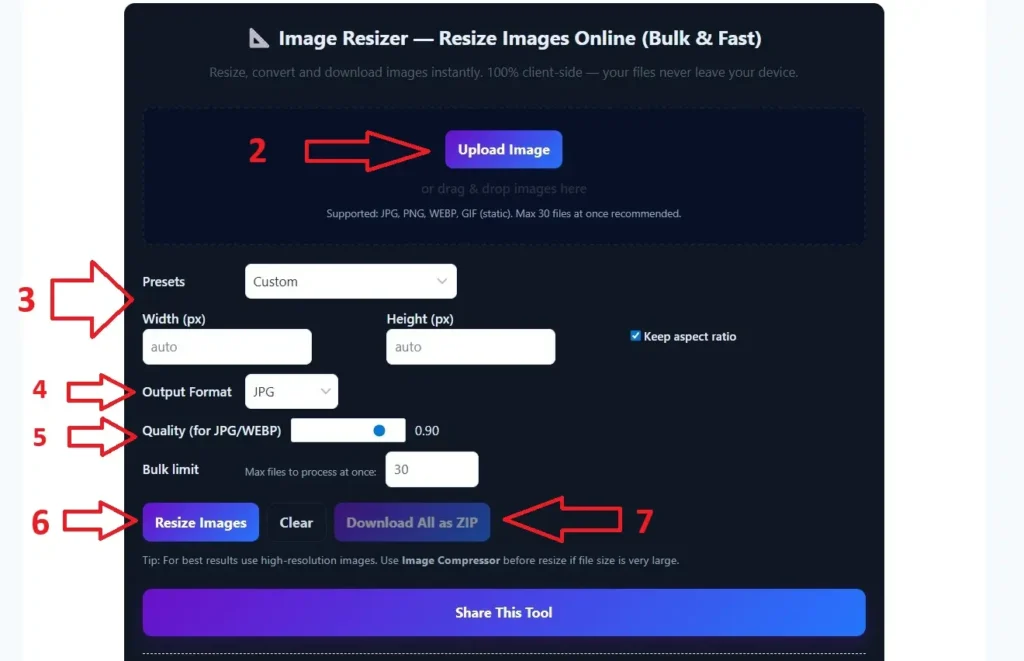
- Go to the ToolsWindow Image Resizer page
- Drag & drop your images (or click to upload)
- Choose a preset or enter custom width/height
- Pick JPG, PNG, or WebP
- Adjust quality if needed
- Click “Resize Images”
- Download one by one or grab the ZIP
That’s literally it.
Things I Wish It Had (Being Honest)
No tool is perfect, right? Here’s what’s missing (minor stuff):
- Direct social media export (like “Share to Instagram”)
- Basic cropping tool (though you can resize to crop creatively)
- Folder upload via browse (drag-drop works great though)
But honestly? For a completely free, no-upload, bulk-capable tool — these are tiny wishes.
Frequently Asked Questions (FAQs)
About Free Image Resizer Online
1. What is the Free Image Resizer Online tool?
It’s a simple browser-based tool that lets you resize any image in seconds. You don’t need software, login, or technical skills. Just upload your image, choose the size, and download the resized version instantly.
2. Does resizing reduce image quality?
Not necessarily. This tool maintains sharpness, colors, and clarity while adjusting dimensions. As long as you don’t upscale images too much, the quality stays excellent.
3. Which image formats are supported?
The tool supports all common formats such as JPG, JPEG, PNG, WEBP, and static GIFs. More formats will be added in future updates.
4. Is it completely free to use?
Yes. You can resize unlimited images for free. There are no hidden fees, watermarks, or signups required.
5. Do I need to install anything?
No. It works directly in your browser—on mobile, tablet, and desktop. Just open the tool and start resizing.
6. Is my data or image stored somewhere?
No. All resizing happens directly in your browser. Nothing is uploaded to any server, so your images remain 100% private.
7. Can I resize images for social media?
Absolutely. You can create perfectly sized images for Instagram, Facebook, YouTube, Pinterest, Twitter, and other platforms by entering custom dimensions.
8. How do I maintain aspect ratio while resizing?
Just enable the “Keep Aspect Ratio” option (if your tool includes it). This ensures the image is resized proportionally without stretching.
9. Can I use this for e-commerce product photos?
Yes. Online sellers use this tool to resize product images for Amazon, Flipkart, Meesho, Shopify, and WooCommerce. Properly resized images improve page speed and user experience.
10. Will this tool help improve website speed?
Yes. Smaller, properly sized images load faster and reduce page weight, which improves site performance, Core Web Vitals, and SEO ranking.
11. What is the maximum image size I can upload?
Most browsers support large images up to several MBs. The tool works fine for most smartphone and DSLR photos unless extremely oversized.
12. Does it work on mobile phones?
Yes. The entire tool is mobile-friendly. You can resize images easily from Android or iPhone.
13. Is there a limit on how many images I can resize?
No limit at all. Resize as many images as you want, anytime.
14. Can I resize images without losing transparency?
Yes. PNG images with transparent backgrounds remain transparent even after resizing.
15. How is this tool different from Photoshop or other software?
Photoshop is powerful but complicated, slow, and paid.
This tool is:
- Free
- Instant
- Super fast
- Beginner-friendly
- Works directly in the browser
Perfect for people who want simple, quick resizing.
16. Do I need internet for the tool to work?
Only for the first load. If your browser caches the tool (PWA-style), you can even use it offline afterward.
17. Will the tool compress the image as well?
This tool focuses on resizing. For compression, you can use your Free Image Compressor tool along with it.
18. Can beginners use this tool easily?
Yes! No technical knowledge is required. The interface is simple, clean, and easy to understand.
19. Are the resized images safe for commercial use?
Yes. You can use your resized images anywhere—blogs, websites, e-commerce platforms, ads, or social media.
20. Can I resize bulk images at once?
Currently, it works one image at a time for precision. If you want, I can write content for a Bulk Image Resizer page too.
Final Verdict: Is It Worth Using in 2025?
100% yes.
If you resize images even once a week, bookmark this tool right now. It’s fast, private, powerful, and doesn’t try to sell you anything.
I’ve switched to it completely — no more uploading sensitive images, no more waiting for slow servers, no more one-image-at-a-time nonsense.
Just pure, instant, hassle-free resizing.
Go resize something. You’ll thank me later.
Try it now:
- Free Image Compressor Tool (Compress Images Without Quality Loss)
- Free Online Word & Character Counter Tool
- Free YouTube Earnings Calculator 2025 [Free Calculator]
- Free Strong Password Generator Online | Create Secure Passwords Instantly
- Free Image to PDF Converter – Fast, Secure & 100% Browser-Based
- Best Free QR Code Generator (Custom QR Code With Logo in 2025)
- Funny Pet Name Generator (Find the Perfect Name for Your Pet Instantly)
- Best Free Email Name Generator 2025 (Create Professional Usernames Instantly)