
JPG vs PDF | Understanding the Difference Betveen JPG and PDF 2026
In the vast digital landscape, we deal with file formats every single day. Whether you are uploading a profile picture, sending a resume to a recruiter, or printing a banner for your store, you are constantly making a choice between file types. The two most common heavyweights in this arena are JPG (or JPEG) and PDF.
To the casual user, they might seem interchangeable—after all, they both show images. However, they are fundamentally different technologies built for distinct purposes.
Understanding the core difference between JPG and PDF is crucial because choosing the wrong one can lead to frustrating issues: blurry prints, massive email attachments that won’t send, or pixelated website images that actually hurt your SEO.
This comprehensive guide will break down everything you need to know about the technical details, pros and cons, and exactly which format you should use for your specific needs. We will even answer the most common question: Is JPEG or PDF better for printing?
What is a JPG (JPEG)?
JPG, which stands for Joint Photographic Experts Group, is the most popular image format on the internet. It is a raster image format, meaning it is made up of a grid of tiny colored pixels.
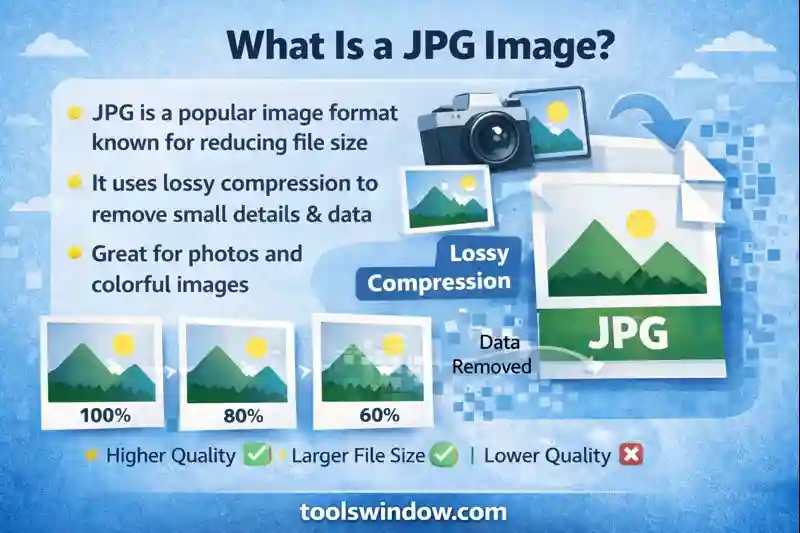
How JPG Works: The Art of Compression
The defining characteristic of a JPG is its compression method. It uses lossy compression. This means that when you save an image as a JPG, the file eliminates some data to reduce the file size.
The algorithm is smart; it tries to discard information that the human eye is least likely to notice (such as subtle color variations).
Because of this, JPGs are incredibly efficient. You can take a massive raw photo from a DSLR camera and compress it down to a few megabytes without the image looking “broken” to the average viewer.
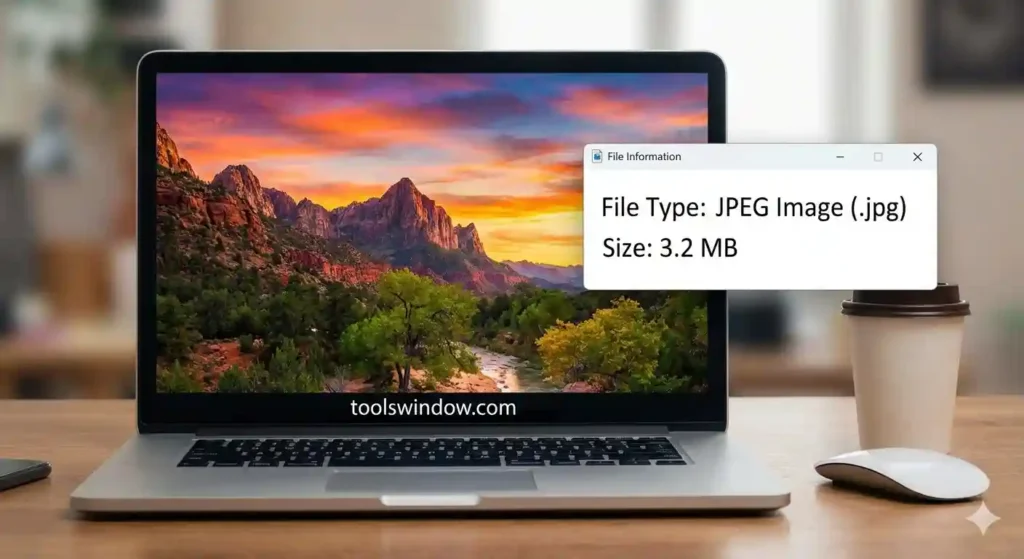
Key Characteristics of JPG
- Universal Compatibility: Almost every device, browser, and image viewer can open a JPG.
- Small File Size: Excellent for websites where loading speed is crucial.
- Photography Standard: It is the default format for smartphones and digital cameras.
- No Transparency: Unlike PNGs, JPGs cannot have transparent backgrounds; they will always fill empty space with white or black.
What is a PDF?
PDF stands for Portable Document Format. Created by Adobe in the early 1990s, the goal of the PDF was to create a file format that would look exactly the same on any screen, regardless of the operating system, fonts installed, or software version.
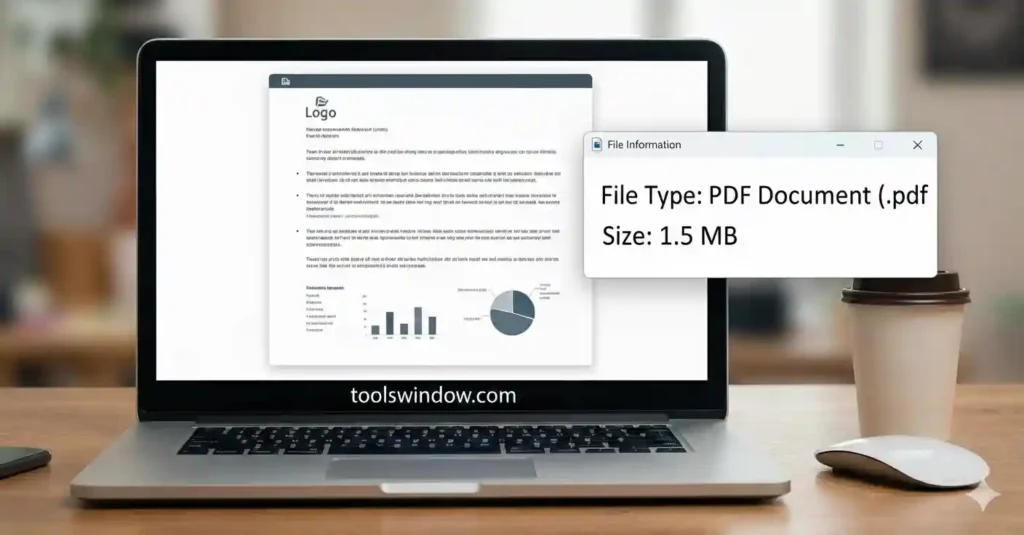
How PDF Works: The Digital Container
Unlike a JPG, which is just a static image, a PDF is much more complex. It is essentially a container. A single PDF file can hold:
- Raster images (like JPGs)
- Vector graphics (lines and shapes that scale infinitely)
- Text (which can be highlighted and searched)
- Interactive forms, buttons, and links
This versatility makes PDF the gold standard for sharing documents. When you send a PDF, you are locking the layout in place.
If you spent hours formatting a report in Word, sending it as a PDF ensures the recipient sees it exactly as you intended, even if they don’t have the fonts you used installed on their computer.
Key Characteristics of PDF
- Multi-Page Support: You can combine hundreds of pages into a single file.
- Vector Capabilities: Text and logos remain crisp no matter how much you zoom in.
- Security: PDFs can be password-protected or encrypted.
- Preserved Layout: Formatting is locked and consistent across all devices.
The Core Differences: JPG vs. PDF
To understand which one to use, we need to look at how they handle data.
1. Editability and Text
- JPG: Once text is saved in a JPG, it becomes a picture of text. You cannot highlight, copy, or edit the words. It is “flattened” into pixels.
- PDF: Text in a PDF usually remains “live.” You can search for keywords using
Ctrl+F, copy paragraphs, and even edit the text if you have the right software.
2. File Size and Compression
- JPG: Designed to be small. However, every time you open a JPG, edit it, and save it again, it loses quality (generation loss).
- PDF: Can be large depending on what is inside. However, PDF compression algorithms are very efficient for text-heavy documents. A 50-page text contract in PDF might be smaller than a high-resolution JPG of a single photo.
3. Consistency
- JPG: Display relies heavily on the screen resolution and color calibration of the device viewing it.
- PDF: Designed to maintain the integrity of the document, including fonts, spacing, and color profiles, ensuring the “digital paper” experience.
Is JPEG or PDF better for printing?
This is perhaps the most common question asked by designers and office workers alike: Is JPEG or PDF better for printing?
The short answer is: PDF is almost always better for printing, but there are exceptions. Here is the deep dive into why.
Why PDF Wins for Print
When you send a file to a professional printer, they need more than just the image. They need data on dimensions, color spaces (CMYK vs. RGB), and bleeds (the extra margin that gets cut off).
- Vector Quality: PDFs preserve vector graphics (like fonts and logos). This means the printer can print your text at 1200 DPI (dots per inch) or higher, resulting in razor-sharp text. If you print a JPG of text, you might see fuzzy edges or pixelation because the text is made of square pixels.
- Color Profiles: PDFs are better at handling CMYK color profiles, which are required for professional ink printing. JPGs are primarily designed for RGB (screen colors), which can result in colors looking duller when printed than they did on your screen.
- Multi-Page Layouts: If you are printing a brochure or a booklet, a PDF keeps the pages in the correct order in one file. A JPG would require separate files for every single page, which is a nightmare for printers to manage.
When JPG is Okay for Printing
If you are printing standard photographs (like 4×6 snapshots) at a local photo kiosk or on your home inkjet printer, JPG is perfectly fine.
In fact, many photo kiosks only accept JPG. Since photos don’t have crisp lines or text, the pixelation issue isn’t noticeable, and the high color depth of JPG works well for continuous tone images.
Summary for Printing:
- Documents, Flyers, Business Cards, Posters: Use PDF.
- Family Photos, Canvas Prints: Use JPG.
Common Scenarios: Which Format Should You Choose?
Let’s look at real-world scenarios to help you decide.
Scenario A: Sending a Resume
Winner: PDF.
You want your resume to look professional. If you send a JPG, it looks like you scanned a piece of paper. If you send a Word doc, the formatting might break if the recruiter uses different software.
A PDF ensures your fonts and layout stay perfect, and the text remains searchable for Applicant Tracking Systems (ATS).
Scenario B: Uploading Images to a Website
Winner: JPG.
Websites need speed. Large files slow down your page load time, which hurts your Google rankings and user experience. JPGs offer the best balance of quality and small file size.
- Tip: Even JPGs can be too big straight out of the camera. To ensure your website stays fast, you should always run your images through an optimization tool. A great resource for this is a specialized Image Compressor. It strips away unnecessary metadata to reduce file size without ruining the quality.
Scenario C: Sharing a Collection of Scanned Documents
Winner: PDF.
Imagine you have scanned 10 pages of a contract. Sending 10 separate JPG attachments in an email is messy and annoying for the recipient.
- Tip: You can combine all those images into a single, professional document. If you have a bunch of image files, use a Free JPG to PDF Converter to merge them into one scrollable file. This makes archiving and sharing significantly easier.
Scenario D: Social Media Posts
Winner: JPG.
Instagram, Facebook, Twitter, and LinkedIn are built for images. Most of them won’t even let you upload a PDF as a post. JPG is the native language of social media.
- Tip: Different platforms require different dimensions (square for Insta, landscape for Twitter). Rather than cropping blindly, use an Image Resizer to adjust your JPGs to the exact pixel dimensions required by the platform to avoid auto-cropping or stretching.
The Technical Breakdown: A Quick Comparison Table
| Feature | JPG (JPEG) | |
| Primary Use | Photos, Web Images, Social Media | Documents, Forms, Printing, Scans |
| Compression | Lossy (smaller size, quality drops) | Lossless (usually), supports various types |
| Editability | Difficult (pixels only) | Easy (text is selectable/searchable) |
| Transparency | No | Yes |
| Multi-page | No (Single layer) | Yes (Multiple pages supported) |
| Ideal for Print? | Only for photos | Yes, industry standard |
How to Manage Your Files Effectively
Now that you know the difference, you might realize you have files in the “wrong” format. Perhaps you have a PDF logo that you need to put on your website (needs to be JPG or PNG), or you have a JPG report that needs to be emailed professionally (needs to be PDF).
Fortunately, you don’t need expensive software like Adobe Acrobat Pro for most of these tasks. Web-based tools have made this incredibly easy.
- Optimization: Never upload raw images to the web. Always compress them first.
- Conversion: Don’t manually type out text from a JPG image of a document; convert it to PDF and use OCR (Optical Character Recognition) if possible.
- Sizing: Don’t rely on HTML to resize your images in the browser (e.g., forcing a 2000px wide image into a 500px box). This wastes bandwidth. Resize the actual file using a tool like the Image Resizer mentioned earlier.
Conclusion
The battle between JPG and PDF isn’t really a battle at all; it’s a partnership. They are tools in a toolbox, each designed for a specific job.
- Use JPG when the visual image is the most important thing, and you need small file sizes for screens, websites, and social sharing.
- Use PDF when the information, layout, and text are the most important things, and you need reliability for printing, contracts, and documentation.
By understanding these differences, you ensure that your digital work looks professional, loads fast, and prints perfectly every time.
Whether you are a student, a business owner, or a creative freelancer, mastering these formats is a small technical skill that pays off in big dividends for your digital presentation.
Remember, if you ever find yourself with the wrong format or a file that is too big to send, tools like the Free JPG to PDF Converter and Image Compressor are there to save the day. Bookmark them, use them, and keep your digital life organized and optimized.
Read Also:

A really good blog and me back again.